Getting the most from your TV: HDMI 2.1, 120Hz, VRR and Game Mode for consoles
The TV and monitor features that matter for PS5, Xbox Series X|S and Switch 2, explained without jargon — and the five-minute settings checklist for a new console.
We choose what to recommend on our own; no brand or store reviews our articles before they go live. Some outbound links are affiliate links, which support this site at no cost to you. How we earn.
Short version. Turn on your TV's Game Mode, plug the console into an HDMI 2.1 port if the TV has one, and enable 120Hz and VRR in the console settings if both TV and game support them. These cost nothing and make games feel more responsive.
A new console can look disappointing on a TV that's set up for movies. Most of the fix is in settings you already have.
The features, decoded
Game Mode (or "low latency mode"). Turns off picture processing that adds delay between pressing a button and seeing the result. It's the single most important setting. Many TVs support ALLM (Auto Low Latency Mode), which switches it on automatically when a console is detected.
HDMI 2.1. The newer HDMI standard needed for 4K at 120 frames per second. On many TVs, only some HDMI ports support it — they're often labeled "4K 120Hz", "Game" or "eARC/HDMI 2.1". If your TV has one, use it for the console.
120Hz. Some games can run at 120 frames per second, which looks and feels smoother. PS5, Xbox Series X|S and the Switch 2 (docked, in supported games) can output 120Hz to a compatible TV.
VRR (Variable Refresh Rate). Lets the TV match its refresh rate to the game's frame rate, reducing stutter and "tearing." PS5 and Xbox Series X|S support HDMI VRR on compatible TVs.
HDR. Brighter highlights and richer color. Run the console's HDR calibration tool once after setup.
The five-minute checklist
- Connect the console to the TV's best HDMI port with the cable that came in the box.
- Turn on Game Mode (or ALLM) in the TV's picture settings.
- In the console's video settings, enable 120Hz output and VRR if the TV supports them.
- Run the HDR calibration in the console's settings.
- On PS5, choose your preferred default for games that offer a "performance" or "quality" mode — performance gives smoother motion, quality gives a sharper image.
TV vs gaming monitor
For a bedroom or desk setup, a gaming monitor can be a better buy than a second TV: lower input delay, high refresh rates and a smaller footprint. Things to check:
- For consoles, a 1440p or 4K monitor with HDMI 2.1 gives the most flexibility.
- Monitors usually have weak built-in speakers or none at all, so plan on a headset.
- Size: 27 inches is the sweet spot on a desk.
Don't overspend on cables
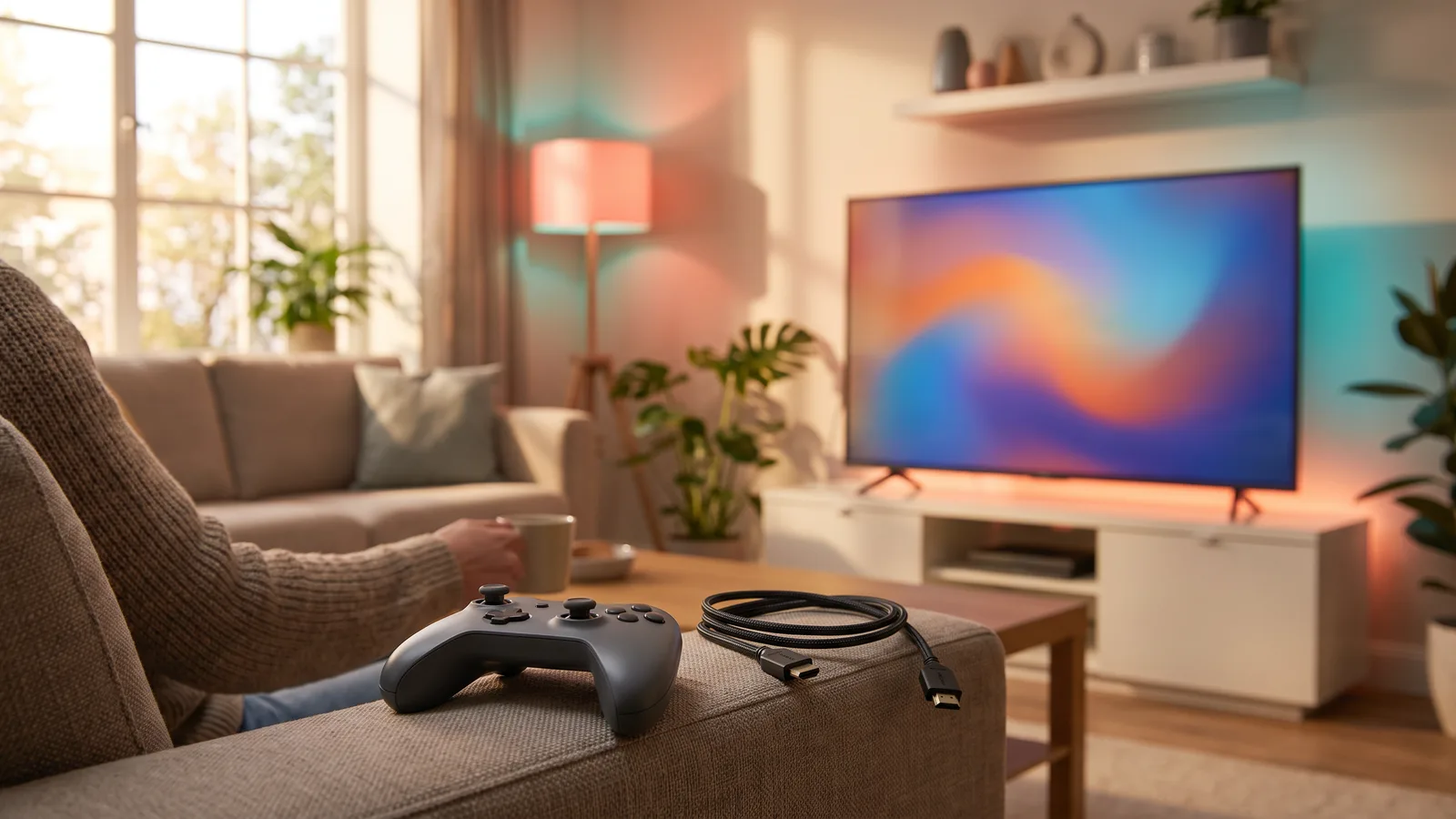
The HDMI cable included with a PS5, Xbox Series X or Switch 2 is suitable for its maximum output. If you need a longer cable, look for one certified "Ultra High Speed HDMI." Expensive "gaming" cables don't improve the picture beyond that.
See gaming monitors · See Ultra High Speed HDMI cables
Facts, prices and policies in this article were checked in November 2026. Prices, bundles and store rules change often — always confirm on the product page before you buy. Spotted something out of date? Tell us.